services:
  elasticsearch:
    image: arm64v8/elasticsearch:8.18.8
    restart: unless-stopped
    volumes:
      # This directory must have 1000:1000 permissions (or update PUID & PGID below)
      - /docker/sist2/sist2-es-data:/usr/share/elasticsearch/data
    environment:
      - "xpack.security.enabled=false"
      - "xpack.security.enrollment.enabled=false"
      - "xpack.security.http.ssl.enabled=false"
      - "discovery.type=single-node"
      - "ES_JAVA_OPTS=-Xms2g -Xmx2g"
      - "PUID=1000"
      - "PGID=1000"
  sist2-admin:
    image: sist2app/sist2:arm64-linux
    restart: unless-stopped
    volumes:
      - /docker/sist2/sist2-admin-data:/sist2-admin
      - /a-aussiemagna:/a1
      - /a2-aussiemagna:/a2
    ports:
      - 4090:4090
      # NOTE: Don't expose this port publicly!
      - 8080:8080
    working_dir: /root/sist2-admin/
    entrypoint: python3
    command:
      - /root/sist2-admin/sist2_admin/app.py
Avoiding dementia one post at a time
Pi
IPv6 Pi

Just moved to a RSP (ISP) that provides rDNS for IPv6 addresses so I thought I would play around with a IPv6 only Raspberry Pi.
The Pi4 boots from a 500Gb USB SSD. The image was copied with the Pi imager tool with custom settings for the local wifi and SSH enabled.
The aim was a Pi running a HTTPS server and a SSH server.
After the first boot and connection via wired IPv4 the network is configured using the text user interface of NetworkManager.
sudo nmtuiFirst a manually assigned static IPv6 address, gateway and DNS server.
Then a reboot and then a SSH connection to the statically assigned IPv6 address.
Now we use nmtui again to disable the wired IPv4 address, deactivate the Pi imager preconfigured Wi-Fi profile and then it’s subsequent deletion.
Reboot once again.
nmtui is also used to set the host name.
Next the system is update as required.
sudo apt update && sudo apt upgrade -y
Next the apache2 webserver is installed.
sudo apt install apache2 -y
This gives us http. For https we will use Let’s Encrypt certificates via the Certbot tool.
Certbot will be installed using Snapcraft.
sudo apt install snapd
Followed by a reboot.
Then
sudo snap install core
Ensure the distro version of Certbot is not installed.
sudo apt-get remove certbot
Then install the new one…
sudo snap install --classic certbot
And finally…
sudo ln -s /snap/bin/certbot /usr/bin/certbot
Now lets get a certificate for use with apache.
sudo certbot --apache
Disable the http config.
sudo a2dissite 000-default.conf
And restart the webserver.
sudo systemctl reload apache2
Next, install fail2ban.
sudo apt install fail2ban
We need to edit a few files to get fail2ban working.
sudo nano /etc/fail2ban/fail2ban.d/ipv6.conf
Enter and save the following…
[DEFAULT]

allowipv6 = auto
sudo nano /etc/fail2ban/jail.d/defaults-debian.conf
Enter…
[sshd]

enabled = true

backend = systemd
sudo systemctl enable fail2ban
sudo systemctl start fail2ban
And check the log…
cat /var/log/fail2ban.log
Networking Pi Pt2
sudo rfkill unblock wlan

sudo nmcli radio wifi on
TvHeadEnd and xbox tv tuner
cd /lib/firmware/
wget http://palosaari.fi/linux/v4l-dvb/firmware/MN88472/02/latest/dvb-demod-mn88472-02.fw
Pi 3 Console cable.
Must do….
Add enable_uart=1 to config.txt
Connect cable…
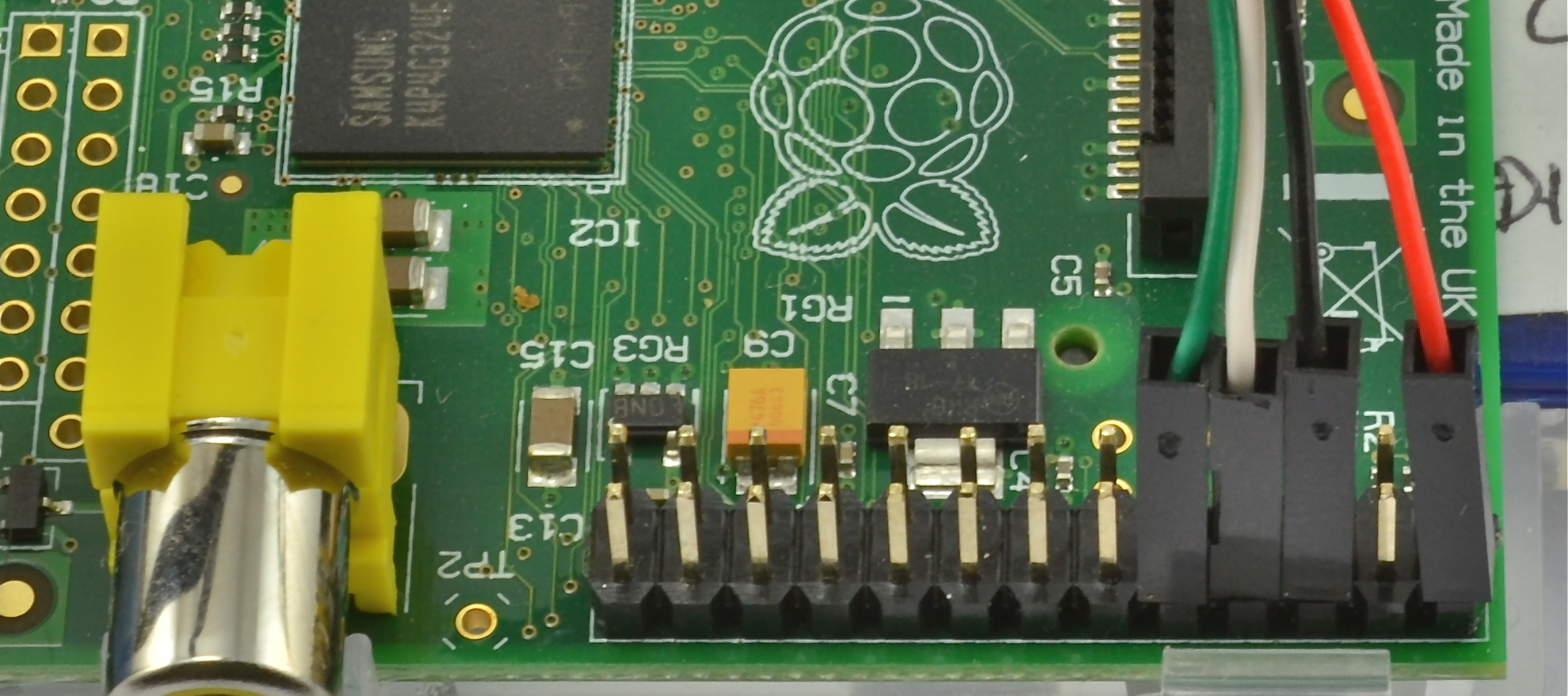
Image from Adafruit.
You can also buy the cable from them… https://www.adafruit.com/products/954
Pi External rootfs
Using a GPT partition table.
apt-get install gdisk rsync parted
parted  /dev/sda mklabel gpt
parted  --align optimal /dev/sda mkpart primary ext4 0% 100%
mkfs -t ext4 -L rootfs /dev/sda1
mount /dev/sda1 /mnt
rsync -axv / /mnt
blkid /dev/sda1 | awk '{print $6}'
nano /boot/cmdline.txt
root=PARTUUID=.......    rootdelay=5
reboot
Using a MBR partition table.
apt-get install gdisk rsync parted
parted  /dev/sda mklabel msdos
parted  --align optimal /dev/sda mkpart primary ext4 0% 100%
mkfs -t ext4 -L rootfs /dev/sda1
mount /dev/sda1 /mnt
rsync -axv / /mnt
blkid /dev/sda1 | awk '{print $3}'
nano /boot/cmdline.txt
root=UUID=.......    rootdelay=5
mkinitramfs -o /boot/initrd.sda
nano /boot/config.txt
initramfs initrd.sda followkernel
reboot